Customer Portal
City of Glenn Heights water Customers now have online access to their water usage information via the Get My Meter Info web portal.
As part of our ongoing efforts to improve services to our Customers, City of Glenn Heights now offers a portal to help you monitor your water usage, offering you direct and secure access to your water usage data.
The Get My Meter Info portal and smartphone apps allow you to review and analyze your water usage patterns. With these tools, you are now able to view your usage activity and gain greater understanding and control of the amount of water you use. You are also able to establish alerts, including identifying potential leaks and abnormal increases in your water usage. To access your smart meter data and notifications, please visit This Link and register for an account today. (YOU MUST REGISTER ON A COMPUTER FIRST)
Portal Guide Below
Get My Meter Info
Access your water usage information and configure notification preferences easily and securely from the Get My Meter Info web portal and integrated smart phone apps.
Registering your account on the web portal
The portal system is accessed by logging into your Get My Meter Info portal account. Using your web browser, navigate to This Link and register your account. During the registration process, you will be required to enter some information found on your utility billing statement, including your account number and the name associated with your account.
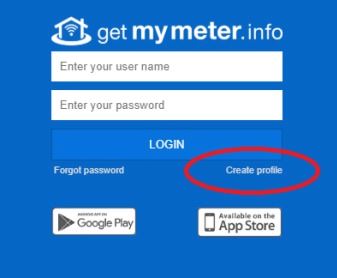
To establish an account please enter “City of Glenn Heights” as the Utility Name and enter your Utility Account Number exactly as it appears on your invoice.
Enter your selected user name, password, First and Last names and your email address. Be sure to check the box to agree with the terms of service and click “Register Account.” You will receive a confirmation email; click the link in the email to activate your account.
Accessing the Portal
After registering and responding to the confirmation email, log in to your account and view the following portal information:
Account Summary
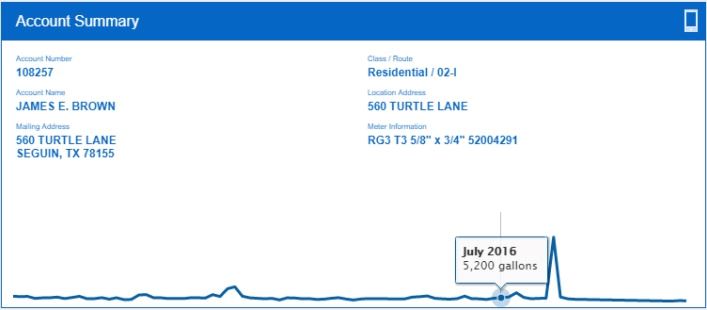
The Account Summary widget shows you information about your account, location and meter along with a graph depicting your monthly water usage history.
Usage Data
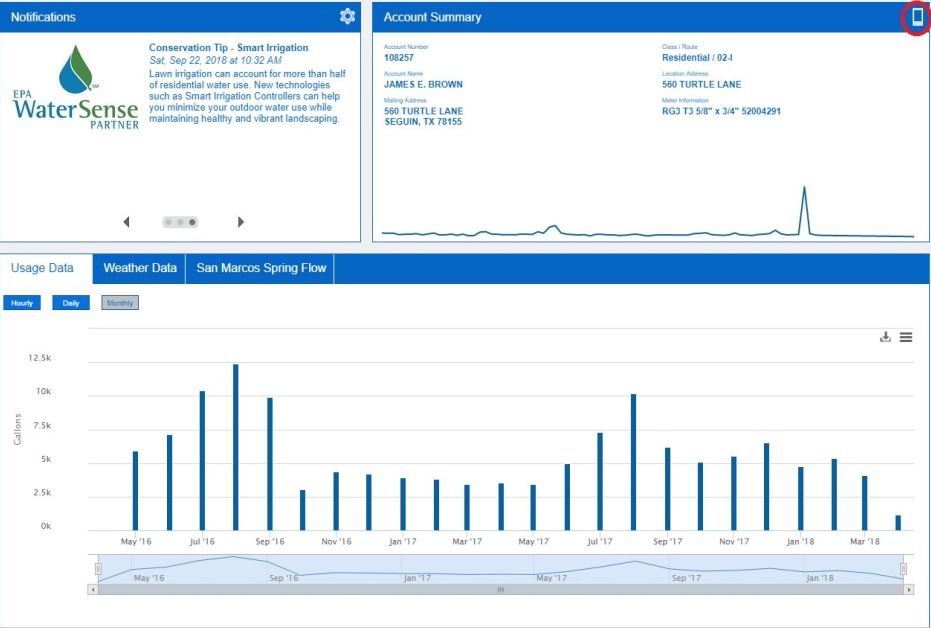
The Usage Data section shows your water consumption; float your mouse over a bar in the chart to view details for that period. Click the “Hourly”, “Daily” and “Monthly” buttons to change the data view. Click the download buttons to retrieve the chart in popular computer graphics formats or the underlying data in Excel format.
Weather Data
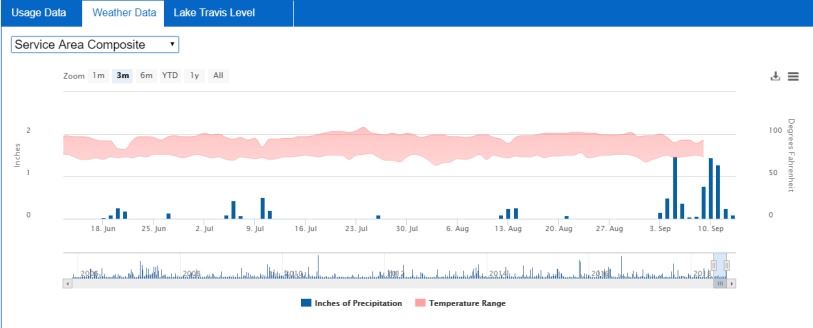
The Weather Data section shows temperature range and precipitation data from weather stations in and around the City of Glenn Heights service area. Click the download buttons to retrieve the chart in popular computer graphics formats or the underlying data in Excel format.
Notification History
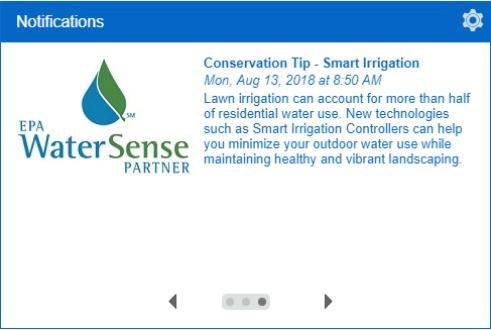
The Notifications section shows you recent notifications including conservation tips, service notices and other communications from City of Glenn Heights. These are the same messages that you have received via email, text or phone depending upon your notification configuration settings. Click the “gear” icon in the upper right corner to access your notification configuration preferences.
Configure Notification Preferences
You can configure where you want to receive notification, and which notices you prefer.
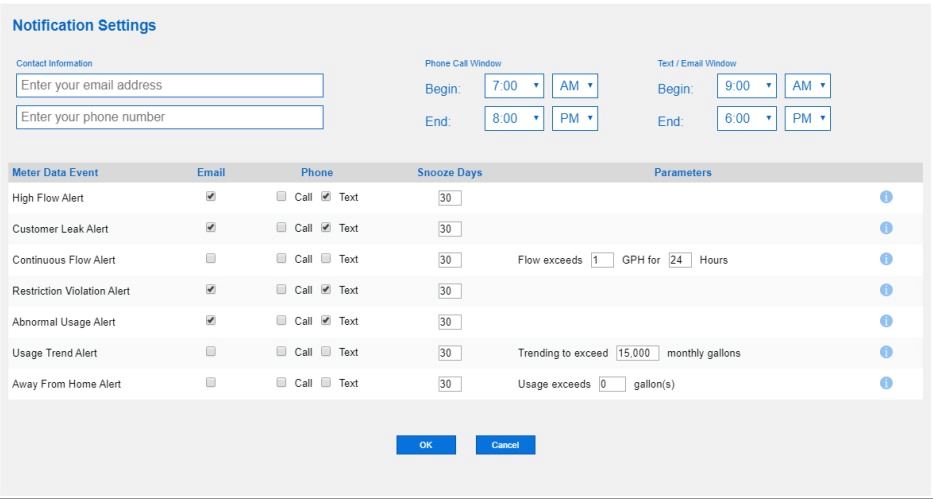
• Enter your email address and phone number for receiving notifications via SMS or automated phone calls.
• Enter the time window during which you want to receive phone messages and the window during which you want to receive messages via SMS or email. To receive messages 24 hours a day, set both to the same value.
• For each notification type, check the “Email”, “Call” and/or “Text” boxes to specify which type of message you want to receive for each alert.
• “Snooze Days” specifies how many days will pass between messages of the same type.
• Some alert types require additional parameter values.
• Float your mouse pointer over the “info” icon for a detailed description of each alert type.
Mobile App
You can also access your portal information using the app on your iPhone or Android phone. Visit the appropriate store and download the app:
Available on: App Store and Google Play
Link the APP to your Account
Your mobile app must be linked to your portal account; this allows you to view your information using the mobile app without logging in. First access your account via the web portal and click the mobile device icon to initiate the pairing process:
Scan the QR Code from the web portal application using the mobile app
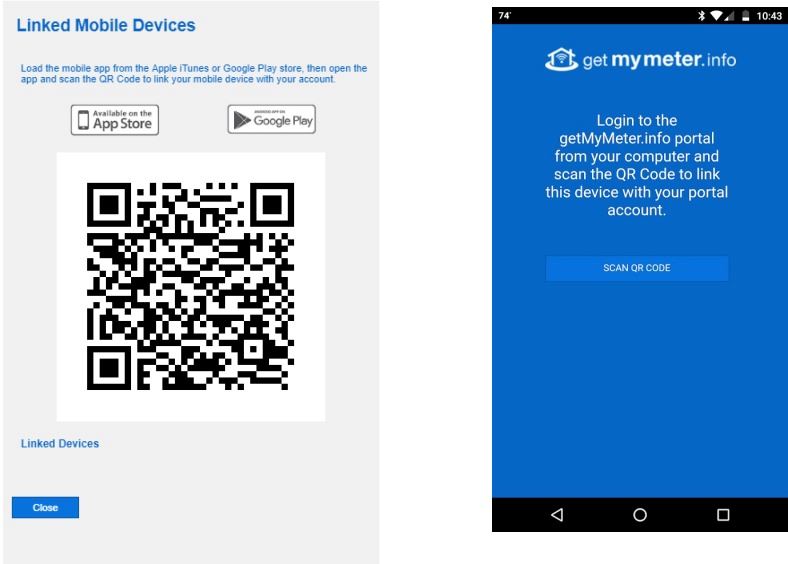
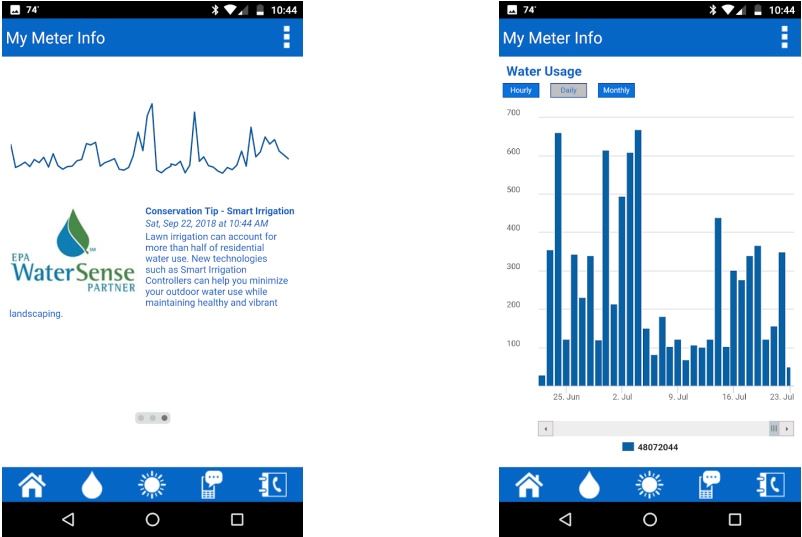
Now you can view your account information and meter data on your mobile device